Help with Morse Keyboard
Support
Help with setting up and using Morse Keyboard. If something here does not answer your question, email us.
Contact us
Email support@morsekeyboard.com.
To help us help you, please include:
- your device (for example iPhone 15 or iPad Air),
- your iOS version (Settings, General, About),
- what you did and what you expected to happen.
We never ask for bank account numbers, card numbers or passwords.
Setup
Add the keyboard
- In the app, tap Open Settings. It takes you to Settings for Morse Keyboard. Or go to Settings > General > Keyboard > Keyboards > Add New Keyboard and choose Morse Keyboard.
- Tap Keyboards.
- Turn on Morse Keyboard.
- Optional: turn on Allow Full Access (see below).
The app cannot pick the keyboard for you; iOS does not allow it. Day 1 of the course walks you through these steps, and you can skip them and come back later.
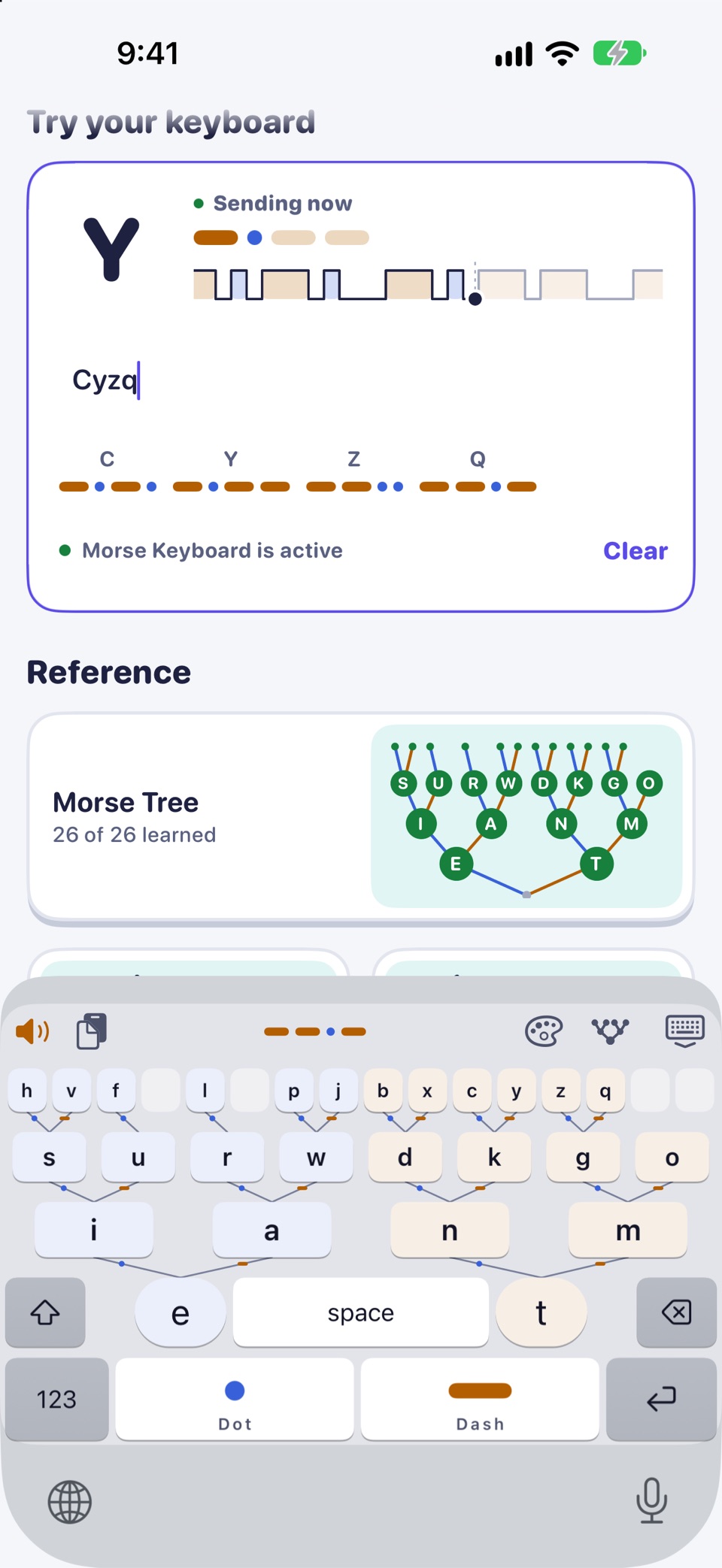
Tip: the app shows whether setup is finished, and whether the Morse keyboard is the one typing in its practice fields.
Using the keyboard
Switching, and what Full Access changes
Switch to the Morse keyboard
In any text field, tap and hold the globe key and choose Morse Keyboard. Or tap the globe key until it appears. iOS remembers the last keyboard you used in each app.
iOS uses its own keyboard in password and phone-number fields. That is an iOS rule for every third-party keyboard.
Full Access
The keyboard types fully without Full Access. Turn it on only if you want these in the keyboard:
- the tones and haptics you set in the app,
- your keyboard theme and settings from the app,
- word suggestions,
- inserting text you decoded on the Decode screen.
When you turn it on, iOS shows a standard warning that keyboards can send what you type. Morse Keyboard never does. Even with Full Access on, the keyboard never connects to the internet and never stores or logs what you type. Privacy policy
Purchases and permissions
Purchases, the microphone and more
The questions we get most. More in the FAQ.
Purchases and refunds
- Pro is a one-time purchase. Keyboard themes are sold separately.
- Restore: open the app's Settings and tap Restore purchases, signed in with the same Apple Account you bought with.
- Refunds are handled by Apple. Ask at reportaproblem.apple.com.
- Buying or restoring needs a connection to the App Store. Everything else works offline.
Microphone and Decode
Decode listens through the microphone to turn whistles and beeps into text. It starts only after you tap to start, and it never records.
If you said no to the microphone, Decode shows a note with a button to open Settings. You can still use Tap to Decode, or decode a sample in the Morse Machine, with no microphone at all.
Flashlight
Transmit can blink the flashlight on iPhone (Pro). It does not use the camera or need camera permission. iPad has no flashlight, so Transmit offers the other ways to send there.
Safety. In an emergency, call your local emergency number (for example 112 or 911). A phone light or speaker sending Morse is not a substitute for calling for help.
Reminders
Practice reminders are optional and come at most once a day. They are local notifications set on your device. Change the time or turn them off in the app's Settings.
Made in Pokhara, Nepal
Who we are
Start with Day 1. It is free.
A keyboard laid out as the Morse code tree, with a weekend-and-four-weeks course. For iPhone and iPad.